The image “http://www.kth.se/internt/logotyper/kth_grundlogotype/kth_rgb.jpg” cannot be displayed, because it contains errors.

EDUROAM
updated 2012-03-05

EDUROAM

eduroam stands for education roaming and is a international cooperation between universities (see eduroam website). The idea is that you use your user account at your home university to login to the wireless network.
Eduroam uses WPA-enterprise which allows you to access KTHs wireless net without logging in everytime you connect to the net. This will also allow you to use the network on many other universities without any change to your configuration.
(note: WPA-enterprise is not the same as WPA-PSK (pre-shared-key) which we DON'T support).
The EDUROAM service works at many universities, but you have to check with each place to be sure.

Where to find EDUROAM hotspots world-wide

Sweden - Europe - Canada - U.S.A. - Asia-Pacific

EDUROAM at KTH

Eduroam is available in most places at KTH. There is a separate wireless WPA network "eduroam" for this that anyone with a valid account can use. E.g. if the guest comes from university XXX.DE (that it is part of the eduroam system) they should be able to login with user@XXX.DE at KTH. Vice versa, a KTH user can login at any university that are connected to eduroam with the username xxx@kth.se and the network secret that you generate below.
To use eduroam outside KTH, you shall keep your configuration as it is. However, you must have the configured username include "@kth.se" (e.g. foo@kth.se). Otherwise you will not be able to login.

How to configure a device (computer, phone) to use eduroam

NOTE: You will need a special network secret to login to KTH's wireless network. You cannot use the password you have for your ordinary KTH.SE login.
Get your eduroam network secret at: https://login.sys.kth.se/peap.html

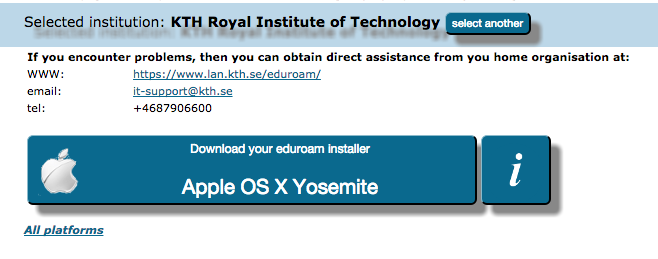
Below are instructions on how to manually configure computers for eduroam. You can also try our tool, KTH eduroam Configurator, for configuration or reconfiguration of eduroam. The program installs the CA Root certificate and (re)configures the wireless settings for eduroam. After configuration you will be asked for username and network secret. The program is available for Windows XP, Windows 7 and MacOS X 10.6 (Snow Leopard). For MacOS X 10.5 (Leopard) there is a separate tool to install the CA Root certificate.

KTH eduroam Configurator (new 11-03-22)
You have to download the file (right click on the link and select "Save Link as...") and execute it if you want to have eduroam automatically configured.

Windows
Windows-7 - KTH eduroam Configurator   |  Checksums
Windows Vista - KTH eduroam Configurator   |  Checksums
XP - KTH eduroam Configurator   |  Checksums

Mac OS X
10.7 (Lion) - Config file - download, then doubleclick on the file and answer "continue" to the questions followed by your username and password when prompted.
10.6 (Snow Leopard) - KTH eduroam Configurator   |  Checksums
10.5 (Leopard) - KTH eduroam Root CA certificate installer   |  Checksums

Manual Instructions if you can't use the configurator:

You might need to install AddTrust External CA Root Certificate which you can download here.
AddTrust_External_CA_Root.pem
AddTrust_External_CA_Root.der

WINDOWS

Windows Vista & Windows 7
Windows XP

Mac OS X

10.7 (Lion) - you will have to use the above config file, or just choose network, enter username, password and veryify certificate.
Mac OS X 10.6 Snow Leopard.
Mac OS X 10.5 Leopard.
Mac OS X 10.4 Tiger

Linux

Instructions for phones and mobile devices (Iphone, Android etc)


Other UNIXes and devices

You are on your own, the short setup hint is that we use PEAP version 0 with MS-CHAP2. See Linux


The network secret generated for PEAP is now 9 characters long. This should be short enough for most devices.

NOTE 2010-07-05: eduroam at KTH has now a new certificate with certificate authority (CA) "AddTrust External CA Root".

If your eduroam login works as before you don't have do anything with the configuration. Otherwise you will have to accept this CA which is done in different ways depending on the OS your computer is running.
Windows XP: Check the box next to "AddTrust External CA Root" in the list of certificate authorities as mentioned in the instructions for Windows XP below.
Windows 7: A popup window will warn you about not validated credentials and ask you to either terminate or connect. Click on Details to see that it is "AddTrust External CA Root" as Root CA and click connect.
MacOS X: A window will show up asking you to verify the certificate. Click on "Show Certificate" and make sure that "AddTrust External CA Root" is on top. Mark it and check the box "Always trust "AddTrust External CA Root". Click Continue.
Linux: You might need to install AddTrust External CA Root Certificate which you can find here
iOS (iPhone etc): Go to settings, WIFI and the select EDUROAM again to validate new certificate.


Page contact: kthlan@kth.se

[KTHLAN home page]